Linux shell scripting deals with creating and processing the script. The main purpose of shell scripting is to systemize systems. Are you a beginner or an experienced user? Let’s learn about how to create a shell script that can manage your time and make it easier for you. In this guide, let’s learn step-by-step how to write, save, and run a shell script in Linux.
Table of Contents
WHAT IS SHELL IN LINUX
A shell script is a simple text file that contains a series of commands written for Linux scripting, like bash, sh, and zsh. Instead of just typing every command manually, you can save the command in a script and run it all at once, like you would run a command for a program. This helps you to work faster and easier, especially for regular tasks such as file management, system monitoring, software installation, or backups.
COMPARISON OF POPULAR LINUXS
Comparison of popular Linux shells like bash, Zsh, Fish, Ksh, and Tcsh. Let me brief the command scripting. Bash is a user-friendly shell with great scripting, like cron. Zhs has features like input completion, modules, and user-friendly; it’s popular among developers. Fish is a modern and user-friendly tool that highlights easily. Ksh is a powerful command-line tool mostly used for advanced scripting and also supports older shells. Tcsh is well known to C programmers because it has a C-like syntax.
|
Shell |
Full Form of shell / Meaning |
Main Features |
Best use |
|
Bash |
Bourne Again |
Linux systems, great for scripting, |
Beginners & scripting |
|
Zsh |
Z Shell |
Input completion, modules, and user-friendly |
Developers & power users |
|
Fish |
Friendly Interactive |
Modern design, syntax highlighting, suggestions |
New users who want ease of use |
|
Ksh |
Korn |
Strong scripting capabilities, supports older shells |
Advanced scripting & legacy systems |
|
Tcsh |
TENEX C |
C-like syntax, users familiar with C programming |
Programmers are used to C syntax |
EXECUTE SHELL SCRIPT IN LINUX
Now, let’s start with creating and running a shell script in Linux. In this guide, we’ll learn how to create a workspace, the step-by-step procedure for creating the first script. For Windows, you can use Linux distros like Ubuntu, WSL, or other distros. Here are some basic terminal keys, like (cd, ls, mkdir), and text editors, like nano, VS Code, or nano.
STEP 1: CREATE A FOLDER
First, if you are using Ubuntu desktop or WSL (Windows Subsystem for Linux), just open the terminal ( Ctrl+Alt+T) to create a file.

Create a folder called script in your home directory with the command
[ mkdir -p ~/scripts]. In this [-p] is an option to create a parent folder if it is needed. Then the command moves inside the folder and creates a new file. Use the command [pwd] to make the document folder, and run it, check with the [ls] command to see the new folder.
STEP 2: CREATE A NEW FILE
As we know, some text editors that are mentioned above, like nano, VS Code. For example, let’s use nano because it’s simple.

you can give a name to the script like [myscript.sh]. Click Enter, it creates a new file.
[.sh] is recommended for Linux, it can be known as it’s a script file. You can use other editors like vi, vim, or gedit
STEP 3: ADD THE SHEBANG LINES
Let’s know about shebang, it is the first line in a script; it is a standard shell. Without the lines, Linux may not identify which command-line to use.

This is the shebang line; it tells Linux to use bash to execute the commands in your script.
[#!] are the shebang symbol and [ /bin/bash] is the interpreter of Linux, that used to run the script.
STEP 4: Write your own command
After the shebang line, try a welcome command that you want to run in the script.

Using the echo command helps to print in the script; it is also interactive and user-friendly. you need to save the file and exit it.
-
Press Ctrl + O, then Enter to save.
-
Press Ctrl + X to exit.
By clicking exit, it moves back to the terminal
STEP 5: Let’s execute the script
For executing the script, use the command [chomd].
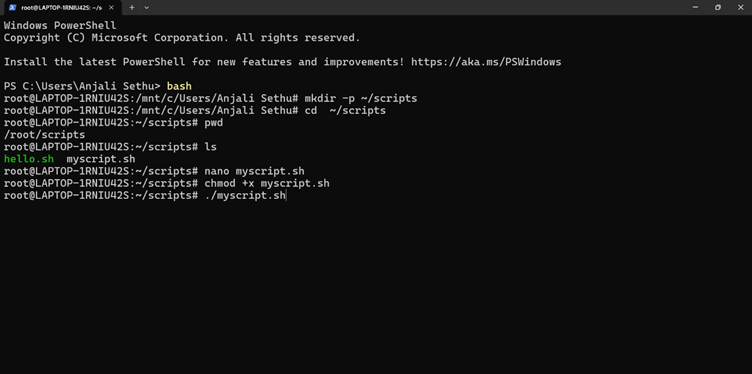
[chomd] is a command that changes file permissions, by adding +x file can be executed.
[chmod] stands for change mode; it’s a Linux command that is used to set file and folder permissions.
STEP 6: Run the script
After executing the script, let’s run the command
The command for running the script is [./myscript sh].
[./] By using this explicitly without a file name, you may get an error.

Run the command by pressing “ENTER”.

It gives your script that you have created, then use [ls] to verify that the folder was created successfully.
TROUBLESHOOT FOR BEGINNERS
Some common problems that you can face from the beginning to the end of this guide, as a beginner. let’s start with some common errors that you can come across.
-
Check the application menu for any sort of trouble in the terminal or commands.
-
Install nano if the file won’t save or nano is not found.
-
Check every command manually in a terminal before using it in shell scripting.
CONCLUSION
Shell scripting is not a tool in Linux; it is a strong tool that takes control of your system. The art of command-line scripting lies in flexibility, which can easily start with very basic commands and adding variables and loops to make your scripts. So, get ready and open the terminal, write your first script today!